TASK: Your task is to add a referenced home page image to your website.
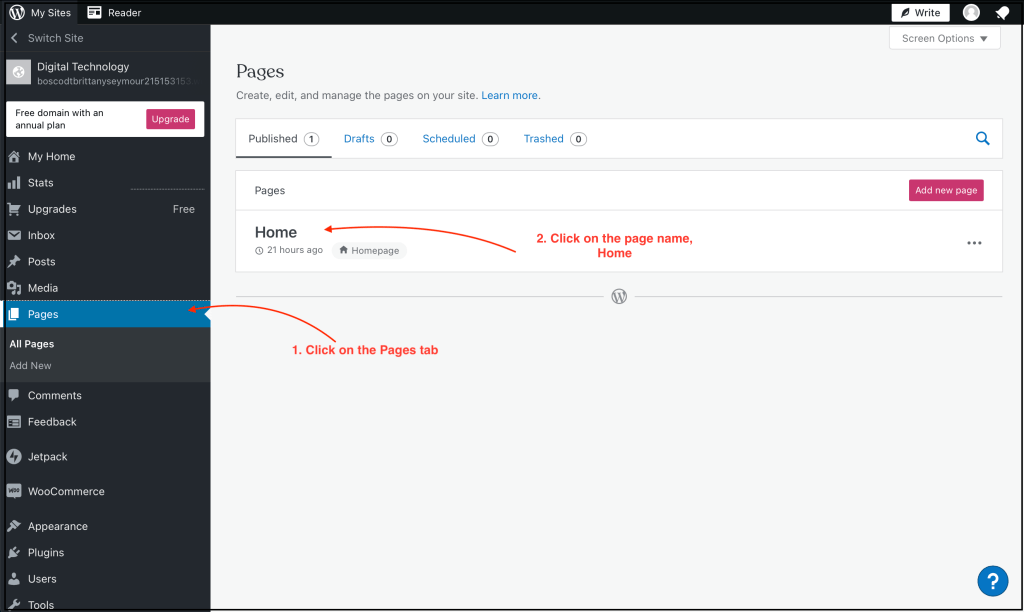
- Step one: This image shows your main menu. You will be asked to refer to this menu throughout your WordPress experience. When you are asked to click on ‘Pages’, this means the option found in this menu, not the app Pages. Common misunderstanding!
- Click on the option Pages,
- Click on the page titled Home.
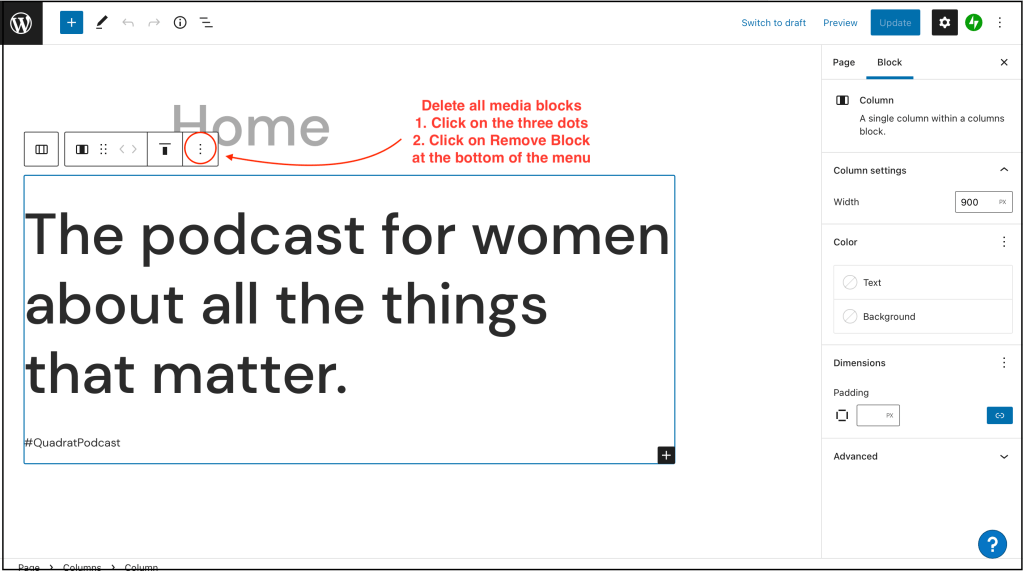
- Step two: Delete all blocks of information until all you have left is the page title: Home
- Step three: Find a home page image
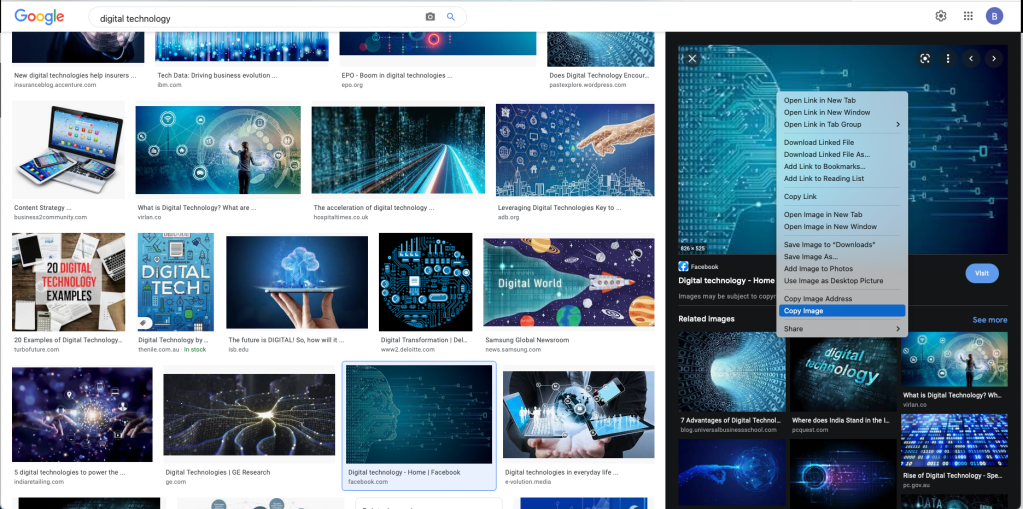
- Go to Google and search for an image that represents Digital Technologies
- Right click on the image (two fingers on the track page)
then select Copy Image
- Go to Google and search for an image that represents Digital Technologies
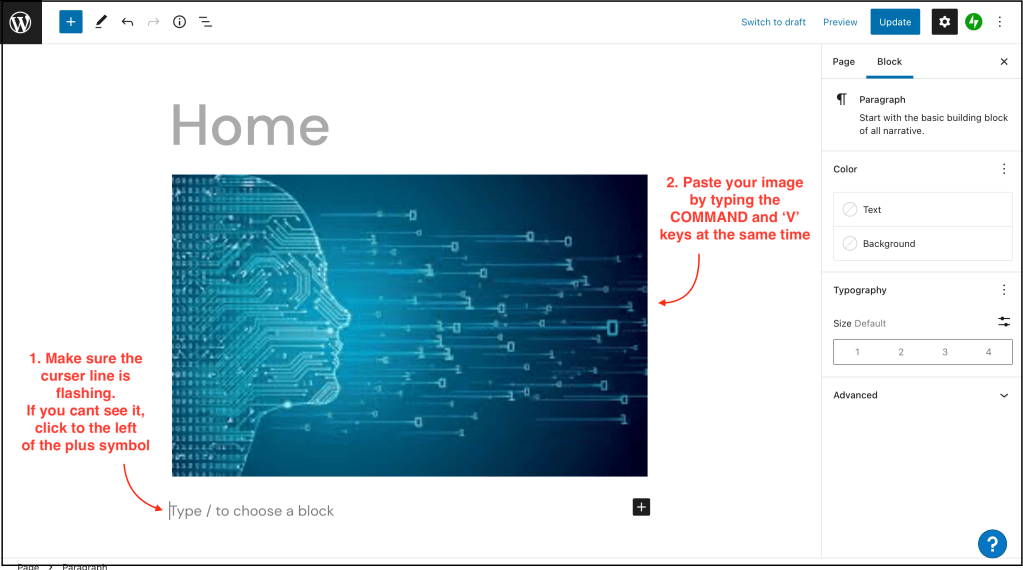
- Step four: Paste the image into your webpage
- Make sure the curser is flashing, then type command and the letter v keys to paste
- Step five: Add a reference to your image
- Go back to Google where you found the image
- Right click on the image again (two fingers on the track pad)
then select Copy Image Address
- Go back to Google where you found the image

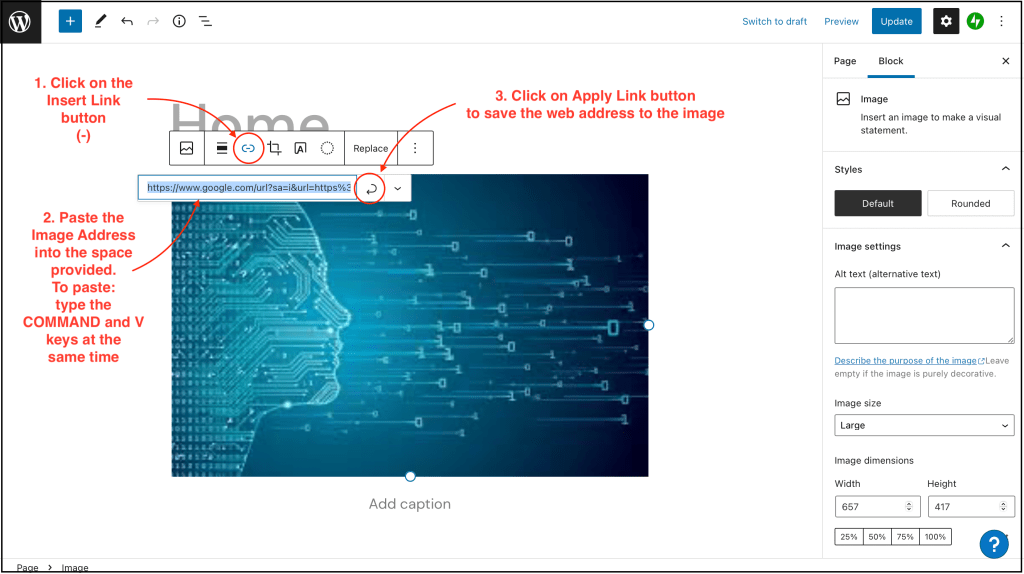
- Go back to your WordPress webpage and click on the Insert Link button (-)
- Paste the image address into the space provided
- Click on the curly arrow to Apply Link. The link will be embedded into the image keeping your webpage clean and organised
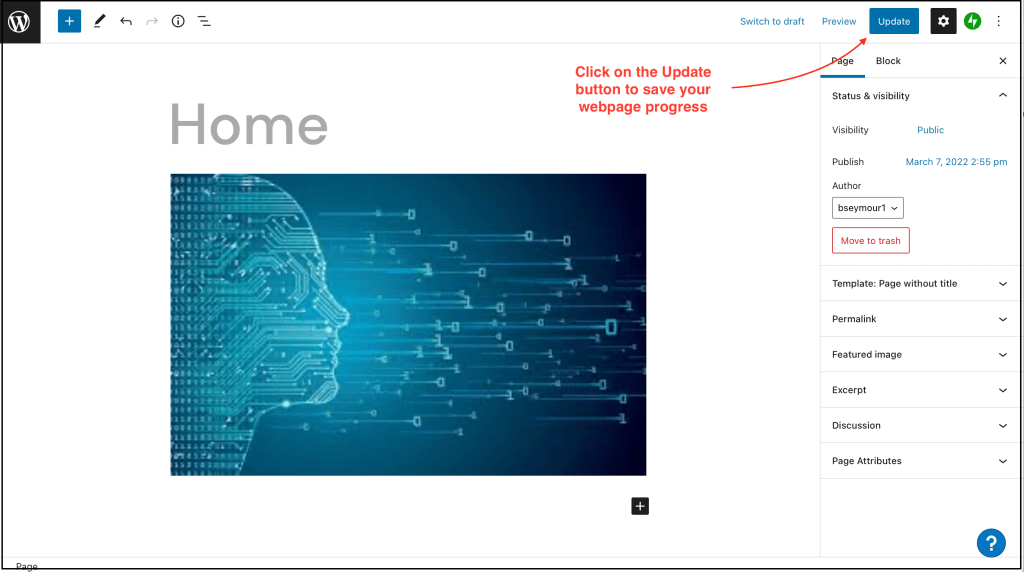
- Step six: Make sure you save your webpage progress regularly.
- Click on the Update button
Home Page Setup: COMPLETE
 Digital Technology